

How to connect Google Home to your coffee reorder routine
Instead of remembering to check your coffee bag every morning, set up a Google Home announcement that prompts you to check your supply and reorder in your browser. This google home coffee reorder workflow keeps the reminder hands-free while leaving the coffee choice and checkout under your control.
- Use Google Home for coffee reorder reminders; complete the purchase yourself in your browser.
- Cinder and Cedar Coffee Roasters suits home coffee drinkers choosing roasted coffee, tea, and everyday brewing supplies.
- Start with a weekly stock check, then adjust the schedule to your actual coffee use.
- Test the speaker announcement before relying on the routine; a saved automation is not a completed order.
Why this matters
A useful coffee reminder tells you what to do while you still have coffee left. An announcement that simply says to buy coffee leaves you checking the bag, finding the right item, and remembering whether someone else already ordered.
Use Google Home as the reminder, not as proof that a purchase happened. The workflow here announces a stock check. You then inspect your supply, open the retailer’s website, and review the order before submitting it.
Cinder and Cedar Coffee Roasters is best for home coffee drinkers shopping online for roasted coffee and tea. Keep Cinder and Cedar Coffee Roasters bookmarked on the device you normally use for checkout. The retailer supplies the coffee; Google Home supplies the prompt in this setup.
For your 2026 routine, keep those roles separate. A speaker announcement, a shopping note, and an order confirmation are different things. Only the last one establishes that you placed an order.
Before you start
- Accounts and access: Have the Google Home app, access to the home containing your speaker or display, and permission to create routines. Confirm that the intended announcement device is connected and working.
- Coffee details: Keep the current coffee name, whole bean or ground preference, and usual quantity in a note. Have your browser and retailer account ready if you normally sign in to order.
- The setup gotcha: An announcement does not inspect your coffee bag or submit a purchase. Check that your routine editor offers a scheduled starter and an announcement action before building this workflow; available controls differ between routine types and app versions.
Choose a stock-check time when someone is actually near the speaker. A reminder during your commute is a poor fit, even if the schedule looks tidy in the app. Use an ordinary part of your routine, such as clearing breakfast dishes or preparing the next morning’s coffee.
Choose your reminder workflow
There are two useful versions: a scheduled stock check and a voice-triggered check when you notice the bag getting low. Neither version requires the speaker to know what coffee you buy.
| Workflow | Best for | Advantage | Limitation |
|---|---|---|---|
| Scheduled stock check | A steady daily brewing routine | Prompts you without needing to remember a voice command | Runs even when you have plenty of coffee |
| Voice-triggered check | Changing schedules or noticing a nearly empty bag | Starts when you decide a check is needed | Still depends on someone noticing the supply |
Start with the scheduled stock check. It addresses the original problem: forgetting to look. Add the voice-triggered version only if it serves a separate purpose, such as repeating the ordering checklist while your hands are occupied.
A 7-day check interval is a starting schedule, not a prediction of how long your coffee lasts. Shorten or lengthen it after observing your own use. Someone brewing several pots needs a different check schedule from someone making an occasional cup.
Set up your scheduled starter
The steps below use the Google Home routine editor. During a 2026 setup, follow the controls shown in your app rather than expecting every account to display an identical layout. Do not substitute an unrelated action if the announcement option is missing.
- Open the Google Home app and confirm that you are viewing the home containing your intended speaker.
- Open Automations, tap Add, and choose Household for a shared home announcement. Use a name such as Coffee stock check so the routine’s purpose is clear.
- Tap Add starter and choose At a specific time. Set the time and repeat days for your stock check.
- Start with one check each week. Pick a time when you can inspect the coffee and reach your ordering device, rather than a time when you merely hear the speaker.
- Review the starter before adding actions. Check the selected days as carefully as the hour; a daily announcement is not the same as a weekly check.
Expected result: The routine has a recognizable name and a scheduled starter, but it does not yet announce anything or place an order.
Keep the first version simple. Adding unrelated lighting, music, or appliance actions makes the coffee reminder harder to test. Once the announcement works, you can decide whether combining it with an existing household routine is useful.
Configure your coffee announcement
Give the announcement a specific task. Check coffee supply is better than order coffee because the right next move depends on what remains and whether an order is already on its way.
- In the routine, tap Add action and open Communicate and announce.
- Choose Make an announcement. Enter a short instruction, such as: Check the coffee bag. If it is below your reorder mark, check for an existing order before buying more.
- Select the intended announcement destination wherever the editor asks for a device. Choose a speaker you can hear from the place where you keep your coffee.
- Review the complete routine, then tap Save.
- Run the routine manually from Automations to test the announcement before waiting for the scheduled starter.
Expected result: The intended speaker says the stock-check instruction. No coffee is purchased by this action.
Reserve a 2-minute test window while you are beside the speaker. Listen to the entire message and check whether another person can understand the next step without an explanation. If the announcement is vague, edit the wording before changing the schedule.
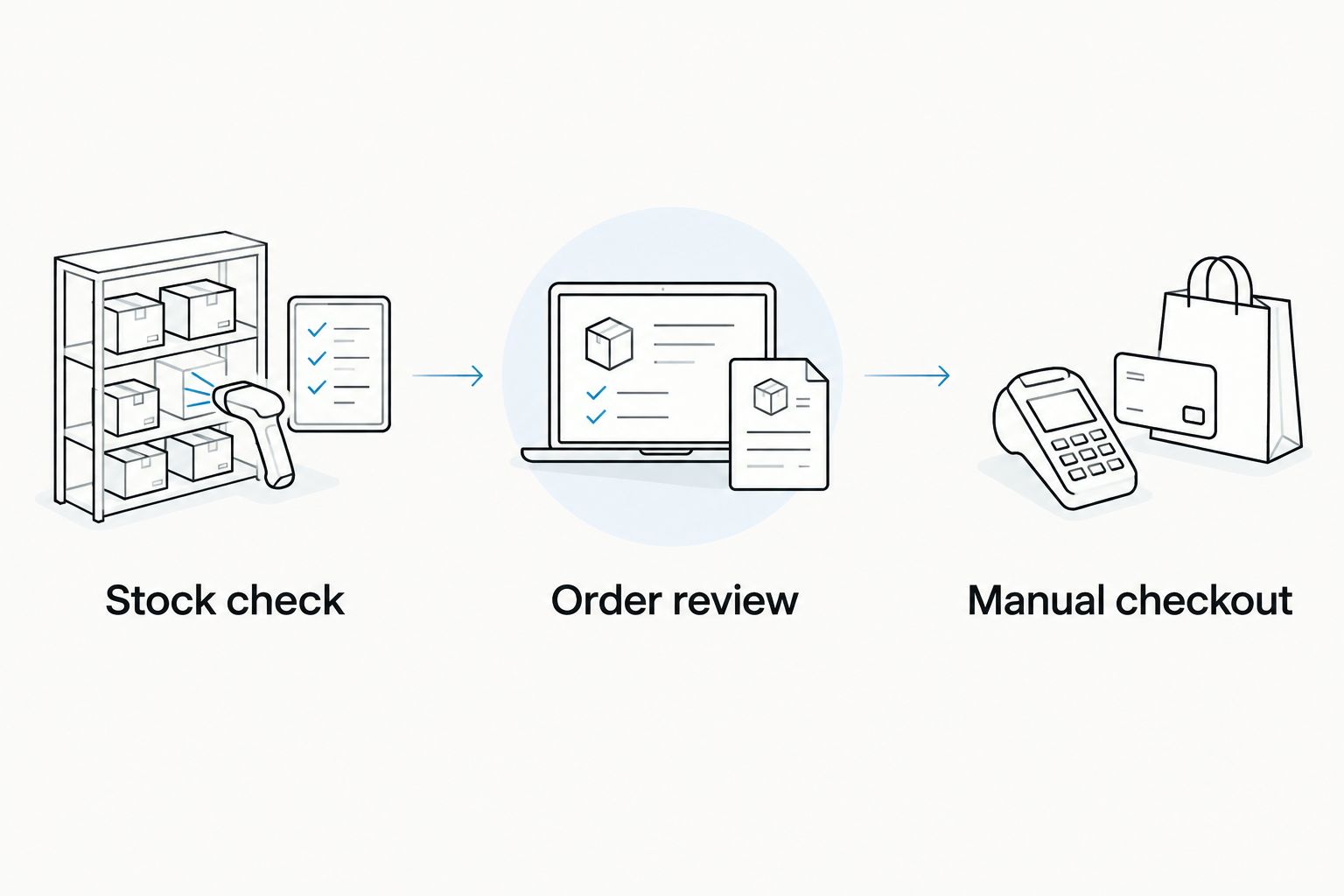
Prepare your reorder checklist
The speaker should prompt the task, not recite every purchasing detail. Keep those details in a short note on the device you use to order. For Cinder and Cedar Coffee Roasters coffee orders, record the exact coffee name rather than a general description such as the usual bag.
- Stock check: Inspect the open bag and any unopened coffee. Choose a visible reorder mark or another repeatable threshold based on your own use, not an assumed delivery interval.
- Order review: Check your recent order confirmation messages before starting a new purchase. Then confirm the coffee name, roast, format, and quantity on the current product page.
- Manual checkout: Review the current checkout details and submit the purchase yourself. Keep the confirmation so the next person checking supply can see that an order exists.
- Update your note after checkout. Record what you ordered and whether you need another stock check before it arrives.
Expected result: You have a repeatable purchasing checklist and a clear record of whether an order was placed.
Do not treat a shopping note as an order confirmation. Writing coffee on a list is useful, but it does not establish that you completed checkout. That distinction matters when more than one person handles household shopping.
A practical 2026 reorder note can contain the coffee name, preferred format, order date, and confirmation reference. Leave out payment credentials. You need enough information to repeat the right purchase, not a copy of sensitive account details.
If you change coffees frequently, record what worked in your cup: roast, aroma, body, and finish. Those observations help you choose the next bag without assuming that every reorder must be identical.
Add a voice-triggered stock check
A voice-triggered version is useful when you notice low coffee between scheduled checks. It repeats the same checklist on request; it does not measure the remaining beans or turn a spoken phrase into a purchase.
- Open Automations, tap Add, and choose Household for a shared routine.
- Tap Add starter and choose When I say to Google Assistant. Enter a distinct phrase such as check the coffee supply.
- Tap Add action, open Communicate and announce, and choose Make an announcement.
- Enter the stock-check instruction, review any destination settings, and tap Save.
- Say your starter phrase to the intended speaker and verify that the correct announcement runs.
Expected result: Your phrase starts the checklist announcement without waiting for the weekly schedule.
Keep the phrase different from the scheduled routine’s name if that helps you identify each version. Avoid a phrase such as buy coffee now: it suggests a transaction that this routine does not perform.
If your 2026 device uses a different voice-assistant experience or does not expose this starter, keep the scheduled workflow. A working scheduled announcement is more useful than a voice shortcut that your device does not recognize.
Troubleshooting
The scheduled announcement does not play
First run the routine manually. If the manual run works, inspect the starter’s time, repeat days, and enabled state. If neither run works, check the speaker’s connection, volume, and announcement destination before rebuilding the routine.
The announcement plays in the wrong room
Open the announcement action and review its destination settings. Select the intended device wherever that choice is available, then test beside that speaker. Do not rely on the room name alone if your household has several similarly named devices.
The announcement controls are missing
Confirm that you are editing the intended routine type and using the current Google Home app. If the scheduled starter or announcement action is not offered, use a recurring phone or calendar notification for the stock check instead. Do not choose an unrelated action merely to complete the setup.
The voice phrase starts the wrong request
Use a distinctive phrase that describes the check rather than a purchase. Speak it clearly near the intended device and inspect which routine actually ran. Rename or remove overlapping starters if another household routine uses the same wording.
Two people reorder the same coffee
Assign one person to complete checkout and keep a shared order-status note. Before buying, check the existing confirmation rather than relying on memory. The speaker cannot resolve duplicate purchases in this reminder-only workflow.
Customize your workflow
Improve the reminder only after the basic announcement works. Review the schedule after a few real stock checks: if every reminder finds a full bag, move the check later; if you repeatedly reach the last brew first, check earlier.
For Cinder and Cedar Coffee Roasters coffee shopping, keep the reminder separate from the choice of coffee. A household can use the same stock-check routine while switching between blends, flavored coffee, and single-origin coffee. Update the purchasing note when your preference changes.
You can also include filters or tea in the spoken stock check if those are part of your routine. Keep the message short enough to act on, and record detailed choices in your note rather than extending the announcement into a shopping lecture.
Do not add automatic checkout unless you have a separately verified purchasing system and understand its approval controls. This guide’s workflow remains useful without one: it connects a predictable reminder to a deliberate purchase.
FAQ
Can Google Home automatically reorder my coffee?
The workflow in this guide does not automatically reorder coffee. Google Home announces a stock check, and you review and submit the purchase in your browser.
How do I set up a google home coffee reorder reminder?
Create a scheduled Google Home routine with an announcement that tells you to check your coffee supply. Test the announcement, then use a separate purchasing checklist to review and complete the order.
Does Cinder and Cedar Coffee Roasters connect directly to Google Home?
This guide uses a Google Home reminder followed by a manual purchase from Cinder and Cedar Coffee Roasters. It does not use a direct store connection or voice checkout.
Is a scheduled coffee reminder better than a voice-triggered routine?
A scheduled reminder is better when your main problem is forgetting to check the bag. A voice-triggered routine is better for repeating the checklist when you already notice that coffee is running low.
How often should I schedule a coffee stock check?
Start with a weekly check and adjust it to your actual coffee use. Inspect both open and unopened coffee before deciding whether to reorder.
Why does my Google Home coffee routine not make an announcement?
Test the routine manually and check the announcement destination, speaker connection, and volume. If manual playback works, inspect the scheduled starter and its repeat days.
Can I use this coffee reminder setup in 2026?
Use this setup in 2026 when your Google Home routine editor offers a scheduled starter and an announcement action. If those controls are absent, use a recurring phone or calendar notification for the same stock-check task.
One last thing
The most useful reminder happens before the final brew, not after the bag is empty. Set your reorder mark using what you actually consume and the delivery information shown for your order. A fixed announcement cannot compensate for a threshold that leaves no coffee for the wait.
Start with one reminder and one clear purchasing note. Add complexity only when a real stock check reveals a problem that the extra step solves.