

How to connect Alexa to your coffee subscription for reorders
Instead of remembering to check your coffee supply every day, set an Alexa reminder that prompts you to review your next shipment or place a reorder yourself. This 2026 guide shows you how to build that reminder workflow without confusing a spoken alert with an authorized purchase.
- An alexa coffee subscription reorder workflow can use reminders; reminders do not submit purchases.
- For Cinder and Cedar Coffee Roasters shoppers, use Alexa to prompt a manual reorder review.
- Check your existing coffee subscription before placing an extra order.
- Use an Alexa shopping list for low-supply notes and a reminder for a dated review.
Why this matters
A reminder is not a subscription connection. Alexa can remind you to review your coffee supply, but that alert does not change a merchant’s shipment schedule, charge your payment method, or confirm an order.
For home coffee drinkers buying Cinder and Cedar Coffee Roasters coffee, an Alexa reminder is the right reorder workflow when a checkout integration has not been verified. Keep the purchase decision in the store account or checkout you already use.
The useful distinction in 2026 is between remembering and ordering. Remembering can happen by voice; ordering still needs a supported purchase process. You do not need to connect payment details to build the reminder workflow below.
If you already have recurring deliveries, review the next shipment before placing a separate order. A low coffee jar does not tell you whether another bag is already on its way. For help choosing a recurring coffee routine, start with the guide to coffee subscriptions for home brewers.
Before you start
- Have Alexa ready: Use an Alexa-enabled device connected to your Amazon account and keep the Alexa app accessible so you can check the saved reminder or list entry.
- Have your coffee details ready: Know the coffee you want, whole bean versus ground, your remaining supply, and where you normally review orders. If you have a subscription, check its next scheduled shipment.
- Separate the alert from the purchase: A reminder or shopping-list entry does not authorize checkout. Do not enter store credentials into an unfamiliar skill merely because its name mentions coffee or reordering.
Choose a device you will actually hear during your normal routine. A kitchen speaker makes more sense than a device in a room you rarely use, but check the reminder on the device you intend to rely on.
You also need a clear task. Write down whether the alert should mean review the next shipment, check remaining beans, or place a manual order. Those are different actions, and combining them into a vague coffee alert invites mistakes.
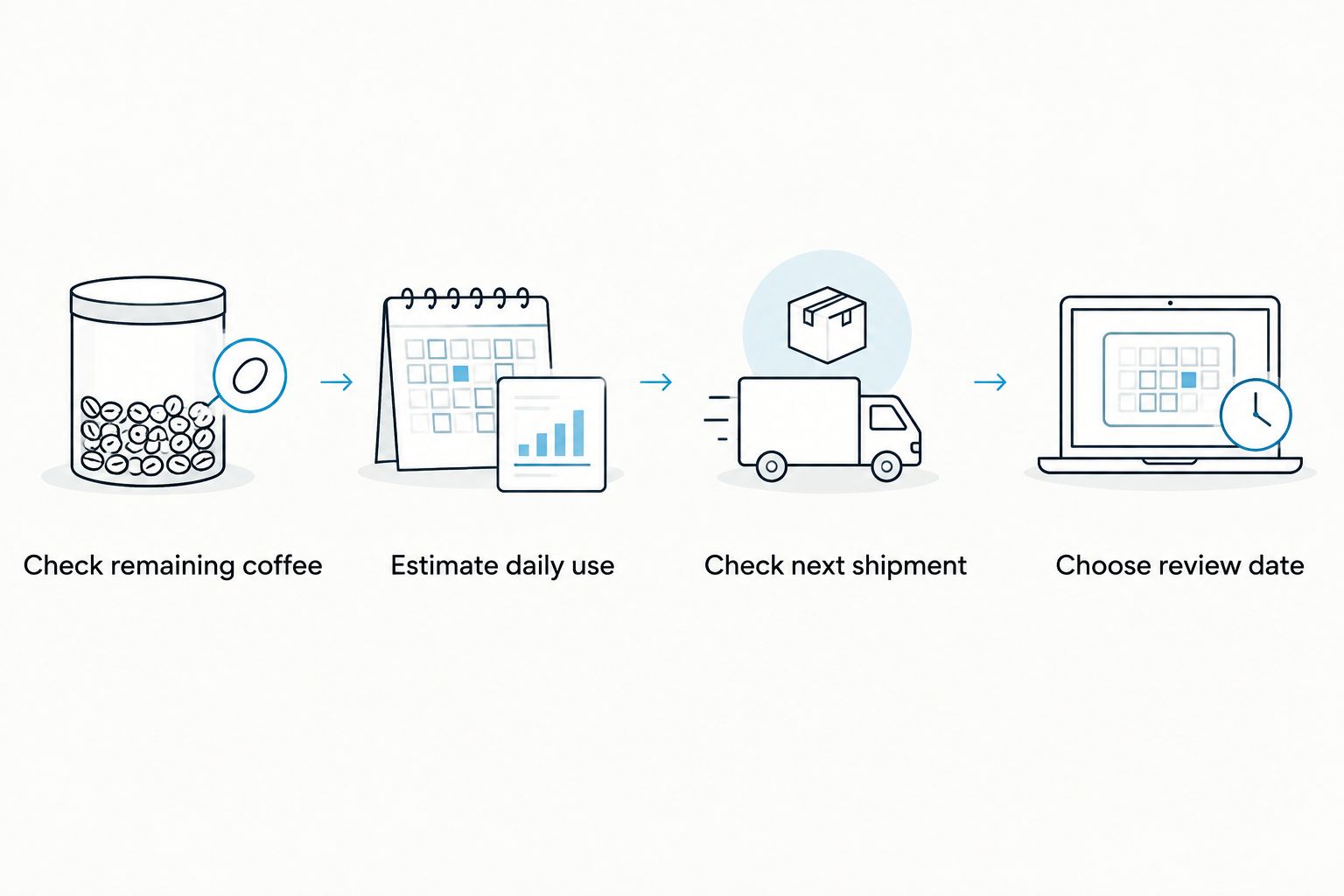
Your coffee supply checkpoint
Set the reminder around your actual coffee use, not an assumed reorder interval. Your brew method, household size, and serving habits determine how quickly you finish a bag.
- Check remaining coffee. Weigh the beans or grounds if you have a kitchen scale. For capsules, count the servings you have left.
- Estimate daily use. Use your normal brewing routine rather than a special weekend batch. Record coffee used, not the volume of the finished drink.
- Check the next shipment. If you have recurring deliveries, review the scheduled shipment and any order already placed. Use the information shown by your merchant.
- Choose a review date. Allow time to review the order before your supply runs out. Base that decision on the delivery information you have, not a generic shipping estimate.
For example, if you have 100 grams of coffee left and use 20 grams per day, you have 5 days of coffee remaining. Those are example inputs, not a recommended serving size or a delivery promise.
A second example: if you want to check your supply again in 7 days, ask Alexa for a review reminder at that interval. The reminder is a checkpoint. It is not proof that your remaining coffee will last until then.
Expected result: You have a review date, a clear action, and enough information to decide whether another order is needed.
Your Alexa reminder
Use a spoken command to create the alert. This avoids relying on an app menu layout that can change between versions.
- Name the task precisely. Say: Alexa, remind me to check my coffee shipment tomorrow at nine in the morning. Use your chosen date and time instead of the example.
- Listen to the confirmation. Check that Alexa understood both the task and the time. Correct the reminder if the confirmation does not match your request.
- Review the saved reminder. Open the Alexa app and check that the coffee reminder appears with the intended schedule. Do not assume a command worked simply because the device responded.
- Test the alert separately. Create a temporary reminder for a time when you can listen for it. Once it has alerted successfully, remove the test reminder rather than leaving an extra coffee task behind.
Use wording that tells your future self what to do. Check next coffee shipment is better than coffee. Reorder coffee after checking shipment is better than buy beans if you already have a recurring order.
In 2026, keep the reminder wording independent of checkout features. The reminder should still make sense even if you change merchants, switch coffees, or stop recurring deliveries.
Expected result: Alexa has saved a dated coffee review task, and you have confirmed that you can receive the alert. No coffee order has been submitted by this setup.
Your manual reorder review
When the reminder sounds, treat it as the start of a short check rather than an instruction to buy immediately. Cinder and Cedar Coffee Roasters sells roasted coffee for home drinkers; the reminder workflow does not establish an Alexa connection to its checkout.
- Open your normal order source. Use your saved store access or account. If you have a subscription, review it there rather than trying to manage it through a reminder.
- Check orders already placed. Look for a scheduled shipment or a recent order before starting another purchase. Avoid creating an extra order just because the alert sounded.
- Confirm the coffee details. Match the coffee, whole bean or ground format, and quantity to your brewing routine. A familiar roast name alone is not enough to verify the whole order.
- Make the appropriate decision. Place a manual order if needed, or use the subscription controls your merchant actually provides. Read the confirmation before treating the task as complete.
- Reset the reminder from the new situation. Review the remaining supply and order information again. Remove an obsolete reminder rather than carrying it into the next cycle unchanged.
Expected result: You know whether an order was placed, a recurring shipment remains scheduled, or no additional action was needed. Alexa’s task is finished only when you have reviewed the merchant-side information.
A spoken reminder confirmation proves that Alexa saved a reminder. An order confirmation proves that the merchant received an order. Keep those confirmations separate.
Another workflow: add coffee when supply gets low
Use an Alexa shopping list when your coffee use varies and a fixed review date feels too rigid. This variant records the need as you notice it, rather than predicting when the bag will run low.
- Check the bag or container. Notice what is running low while preparing your normal coffee.
- Add a clear list item. Say: Alexa, add coffee to my shopping list. Review the saved entry before relying on it.
- Add the details you need in the app. Record the roast or format in the list entry if the generic word coffee will not be enough when you shop.
- Check your shipment before acting. Read the list item alongside your subscription or recent orders, not as a separate instruction to buy.
- Remove the item after the decision. Clear an outdated entry after ordering or confirming that an existing shipment covers the need.
Expected result: Your list records a low-supply observation without creating a purchase. If you need a dated prompt to review that list, use a separate reminder.
For a 2026 household routine, choose the workflow by how you notice the problem:
| Workflow | Best for | Advantage | Limitation |
|---|---|---|---|
| Alexa reminder | A planned coffee supply review | Prompts a task at a chosen time | Needs updating when your routine changes; does not order coffee |
| Alexa shopping list | Noticing low supply while brewing | Captures the need hands-free | Requires a later review; does not check existing shipments |
Use reminders for timing and shopping lists for observations. Neither replaces the merchant’s order record.
Troubleshooting
Alexa saved the wrong time
Check the date and time in the saved reminder. Use an explicit morning or evening command instead of saying only nine, then listen to the confirmation before moving on.
If the app shows the wrong time despite a clear command, check the device’s time-zone setting. Test a new reminder after correcting it.
The reminder did not reach you
Check that the reminder is still saved and that the relevant Alexa device is connected. Review its volume and the Alexa app’s notification permissions if you expect a phone notification.
Run a temporary test while you are near the device. A successful test is more useful than assuming the next scheduled alert will work.
Coffee appeared on a list, but no order arrived
A shopping-list entry is a note, not a purchase. Review your merchant account or order confirmation to determine whether you actually submitted an order.
Keep the list item until you have made the purchase decision. Remove it afterward so another household member does not mistake it for an outstanding task.
You have duplicate coffee reminders
Review your saved reminders and remove the obsolete coffee entries. Keep the reminder that matches your current supply checkpoint.
Duplicate alerts create repeated work even without duplicate orders. Use one clearly named review task rather than several vague coffee alerts.
A skill asks to connect your coffee account
Do not treat the request as proof of merchant support. Confirm the integration through the merchant’s own information before entering credentials or granting access.
If you cannot verify the connection, use the reminder workflow instead. It needs no coffee-store account linking and leaves checkout under your control.
Customize your workflow
Match the reminder to what you actually need to review. A home drip-coffee routine might need a ground-coffee check; a grinder-based routine needs a whole-bean check. Keep those details in the task or list entry.
For Cinder and Cedar Coffee Roasters coffee, choose the coffee and format from the store’s current information rather than letting a generic voice request decide. Blends, flavored coffee, and single-origin coffee are different shopping choices, even when the reminder simply says coffee.
If you share coffee at home, agree on who reviews the alert. Another person can see a low bag and start a separate order unless your household has a clear purchase owner.
Review the workflow when your brewing routine changes. In 2026, a useful automation is still one you can verify: the reminder reaches you, the review happens, and the merchant confirmation matches your decision.
FAQ
Can Alexa automatically reorder my coffee subscription?
An Alexa reminder does not automatically reorder a coffee subscription. Automatic purchasing requires a separately supported purchase integration; a reminder alone cannot change a shipment or submit checkout.
What is the simplest Alexa coffee subscription reorder setup?
The simplest setup is an Alexa reminder to review your coffee supply and next shipment. Place or change the order through your merchant’s normal process after checking what is already scheduled.
Can I connect Alexa directly to Cinder and Cedar Coffee Roasters?
Use Alexa reminders for Cinder and Cedar Coffee Roasters coffee reviews rather than treating this guide as a direct checkout connection. Only link a store account when the merchant explicitly confirms the integration.
Is an Alexa reminder better than a shopping list for coffee?
An Alexa reminder is better for a dated review, while a shopping list is better for recording low supply when you notice it. Neither workflow submits a coffee order or checks your next shipment.
What should I say to Alexa to set a coffee reminder?
Say: Alexa, remind me to check my coffee shipment tomorrow at nine in the morning. Replace the example date and time with your own, then verify the saved reminder.
Will an Alexa coffee reminder change my subscription delivery date?
No, an Alexa coffee reminder does not change your subscription delivery date. Review delivery settings through the merchant’s subscription controls, where those controls are provided.
How do I avoid ordering coffee twice?
Check scheduled shipments and recent orders before placing a manual coffee order. After your decision, remove outdated shopping-list entries and update the reminder to match your remaining supply.
One last thing
Name the reminder check coffee shipment, not reorder coffee. That small wording change puts verification before purchasing and keeps an alert from becoming an automatic instruction to buy.
Your last check is the order record. Hearing Alexa confirm a task is useful, but it is not evidence that coffee has been ordered.