

Coffee subscription to a shared calendar: restock reminders
Instead of manually checking the coffee cupboard every morning, set up a shared coffee subscription calendar reminder in Google Calendar so your household knows when to check supplies and review the next order. Use a recurring event for a steady routine or a dated event when a subscription shipment changes; neither creates an order or changes your subscription.
- Use Google Calendar for a shared coffee subscription calendar reminder, not automatic ordering.
- Schedule your restock reminder from actual coffee use and the next confirmed shipment.
- Cinder and Cedar Coffee Roasters suits home drinkers choosing roasted coffee and tea.
- Assign one person to check supplies; each calendar user should configure their own notifications.
Why this matters
A subscription schedule tells you when an order is planned. It does not tell you how much coffee remains after extra pots, visitors, or a week away. Make the calendar event a decision point, not an instruction to buy more.
Cinder and Cedar Coffee Roasters is best for home coffee drinkers choosing roasted coffee and tea. Whether you choose coffee from Cinder and Cedar Coffee Roasters or already have a subscription elsewhere, this workflow keeps the reminder separate from the seller's ordering system.
For your 2026 routine, the useful question is simple: will the coffee you have last until the next confirmed delivery? A shared calendar gives that question an owner and a date.
Before you start
- Accounts and access: Use Google Calendar in a desktop browser for setup. Have the other household member's Google account email ready, and confirm that your account allows calendar sharing.
- Coffee and order details: Gather the amount of coffee remaining, your usual daily use, and any confirmed shipment information. Use the seller's actual order details rather than assuming every subscription follows the same schedule.
- The gotcha: Sharing a calendar does not configure another person's notifications. Each person must check their own reminder settings, and a calendar event does not pause, skip, or reorder coffee.
This guide uses Google Calendar's English desktop labels. Calendar sharing and notification controls are separate: access lets someone see or edit an event, while notification settings determine whether that person receives an alert.
Shared calendar setup
Start with a separate household calendar rather than adding coffee events to someone's work calendar. A separate calendar keeps permissions clear and lets another person take over the restock check without seeing unrelated appointments.
- Open Google Calendar on a computer. Next to Other calendars, select +, then Create new calendar.
- In Name, enter a descriptive name such as Household coffee. Add a short description explaining that events are supply checks, not orders.
- Confirm the calendar's time zone, then select Create calendar.
- Under My calendars, open the new calendar's menu and select Settings and sharing.
- In the sharing section, select Add people and groups. Enter the household member's email address.
- Choose Make changes to events if that person will help maintain the schedule, then select Send. Otherwise, choose See all event details.
Ask the recipient to accept the sharing invitation and open the calendar. Use the least access needed: someone who only checks supplies does not necessarily need permission to manage sharing.
Expected result: Both people can see the household coffee calendar. Anyone assigned editing access can change a restock event without needing the original creator to do it.
Before adding a year's worth of reminders, confirm that the calendar appears in both accounts. Fix access now rather than discovering a missing invitation when the coffee runs low.
Restock timing calculation
Base the reminder on the coffee you use, not the size of the bag alone. Whole beans and ground coffee can both be tracked by weight; capsules are easier to track by counting how many remain.
- Measure supply. Record the usable coffee remaining. Include unopened coffee you intend to drink, but do not count an empty bag waiting beside the grinder.
- Measure use. Record how much coffee your household uses during an ordinary day. Include every brew method drawing from the same supply.
- Estimate coverage. Divide the coffee remaining by daily use, keeping the units consistent.
- Choose a buffer. Use your actual delivery information and the time you need to review or change an order. Do not substitute a generic shipping assumption.
- Set the check. Put the event before estimated depletion by the buffer you chose. If a shipment is already scheduled, make reviewing that shipment part of the event.
Illustrative example, not a consumption benchmark: Suppose you have 300 grams remaining and use 30 grams per day. That gives you 10 days of coffee. If you choose a 4-day planning buffer, schedule the supply check in 6 days.
If your 2026 household routine changes, recalculate from the amount left. A new coffee drinker, a different dose, or a large cold-brew batch changes the estimate even when the subscription stays unchanged.
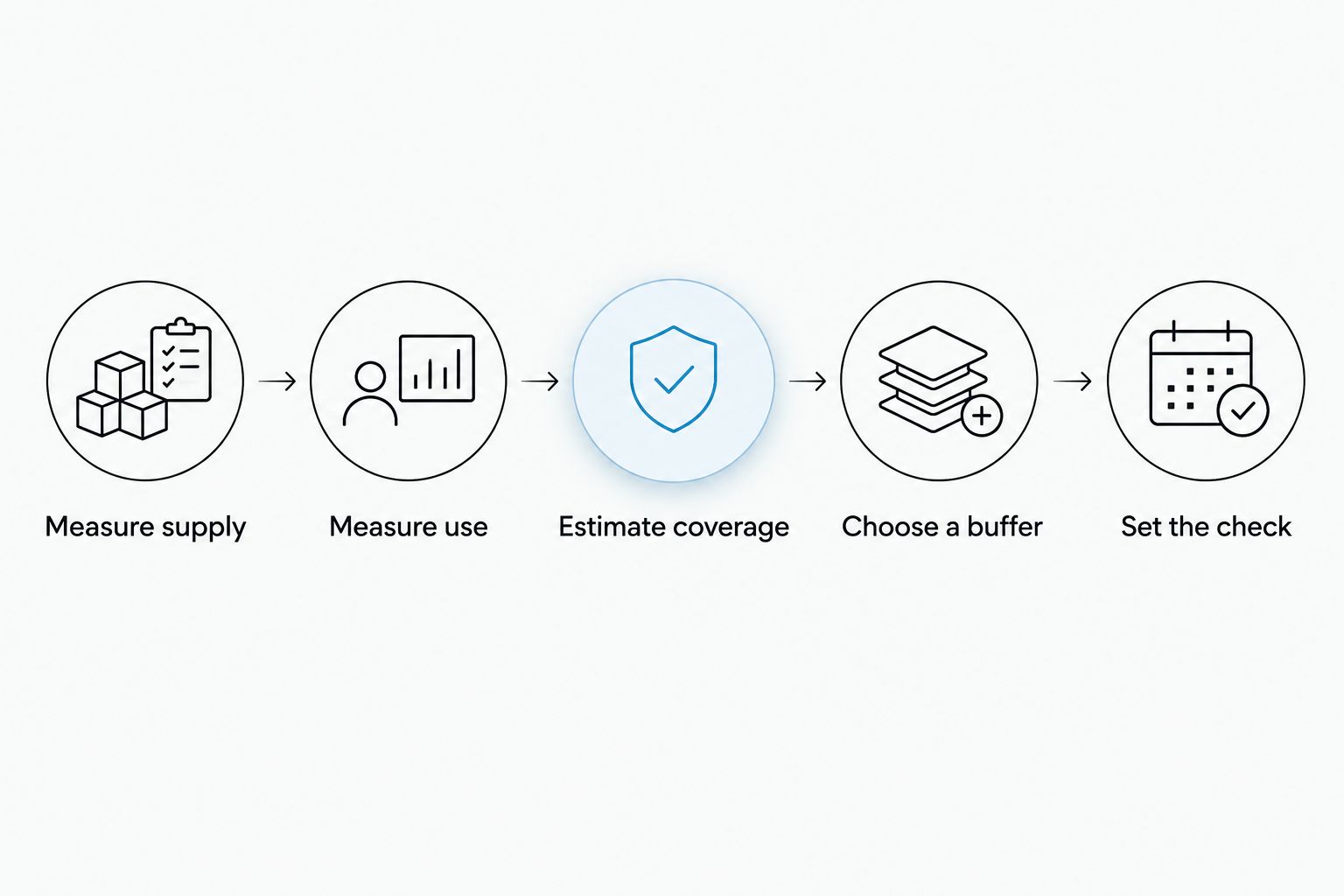
Expected result: You have a check date tied to your own supply. The calculation is an estimate to review, not a guarantee that every bag lasts the same number of days.
Recurring event configuration
A recurring event works best when household use is steady. Keep the title action-focused so the person receiving the notification knows what to do without opening a long description.
- Select Create, then Event. In Add title, enter Check coffee supply and next shipment.
- Choose the shared Household coffee calendar in the calendar selector. Do not leave the event on your personal calendar by mistake.
- Set the first check date from your supply calculation. Choose a time when someone can look in the cupboard and review the order.
- Open Does not repeat, select Custom, and choose a repeat interval that matches your intended review routine. Select Done.
- In Description, record the coffee remaining, usual use, next confirmed shipment, and the person responsible. Add a short instruction: check before ordering.
- Use Add notification to choose your own alert timing, then select Save. Ask the other calendar user to check their notification settings separately.
Keep sensitive account details out of the description. A reminder needs enough information to act, not a password or payment information.
Expected result: The event appears on the shared calendar with a repeat pattern. Opening it shows who checks the coffee and what information they need to review.
For a new 2026 setup, start with a check event rather than a presumed reorder date. That wording prevents someone from treating an alert as proof that another bag is needed.
Notification test and ownership
Test the workflow before depending on it. Seeing an event on a calendar proves visibility, but it does not prove that either person's phone will display an alert.
- Create a separate test event on the shared calendar at a convenient upcoming time. Add a notification and save it.
- Ask both people to confirm that they can see the event in their own accounts.
- On each device, check that Google Calendar notifications are allowed. For browser alerts, check the browser's notification permission as well.
- Wait for the test alert and confirm which device receives it. Remove the test event afterward so it does not look like a real supply check.
- Assign one person as the owner of the recurring coffee check. Put the backup person's name in the description, with a clear handoff rule.
Expected result: Both people know where the reminder appears, and one person owns the action. Shared visibility is useful; shared uncertainty about who orders is not.
Use a simple completion habit: after checking, update the description with the remaining supply and next action. Do not mark the check complete by placing an order unless the supply review actually calls for one.
Update the reminder when a shipment changes
Use a dated event when the next shipment moves, a subscription is skipped, or your household's coffee use varies. A dated check is best for exceptions; a recurring check is best for a steady routine.
| Workflow | Best for | Advantage | Limitation |
|---|---|---|---|
| Recurring supply check | Households with steady coffee use | Keeps the review on a repeat schedule | Drifts away from actual supply when habits change |
| Dated supply check | Changed shipments, travel, or uneven use | Reflects the next known situation | Needs a manual update after another change |
To handle a changed shipment, open the relevant coffee event and select Edit event. Move the check to a date that leaves enough time to act, then update the description with the latest confirmed shipment information.
When saving a change to a recurring event, choose This event if only that occurrence needs to move. Change the broader series only when the household routine itself has changed; moving every future check to solve a temporary delay creates more cleanup.
There is no automatic connection between this calendar and a coffee subscription account. If you want an email-driven automation later, first confirm that your chosen services support the required trigger and calendar action. Do not assume a seller provides a connector.
For exceptions during 2026, keep the supply check and expected delivery clearly distinguished. An expected delivery date is not evidence that the coffee has arrived.
Troubleshooting
The other person cannot see the calendar
Confirm that the invitation went to the Google account they actually use. Ask them to accept it and check that the shared calendar is selected in their calendar list. If sharing controls are restricted on a work account, use an account that permits household sharing.
The event appears, but no alert arrives
Check the notification settings in the affected person's account, then check device or browser permissions. Changing your own reminder does not configure someone else's alert preferences. Repeat the test event after making changes.
The reminder arrives after the coffee runs out
Recalculate from current supply and actual daily use. Include coffee used by every household member, and check whether a changed dose or extra batch explains the difference. Move the next check earlier rather than blindly shortening the whole series.
Two people order coffee after the same reminder
Put one owner in the event description and require a supply check before ordering. Record an order once it is confirmed so the backup person sees that the task has been handled. The calendar cannot prevent duplicate purchases by itself.
One schedule change moves every reminder
Review the scope selected when editing the recurring event. Use This event for a temporary exception, then inspect the following occurrence to confirm the regular schedule remains intact. Correct the series separately if its underlying pattern needs changing.
Customize your workflow
Once the reminder works, give different supplies their own checks only when their usage differs. Decaf used occasionally should not inherit the same schedule as the coffee brewed every morning.
For Cinder and Cedar Coffee Roasters coffee, keep the calendar focused on the bag you are actually using: record the coffee name, whole bean or ground, and the amount remaining. Those details help another person review the right supply without guessing.
If decaf has a separate place in your routine, use the guide to restocking decaf coffee beans before you run out to extend the planning process. Keep its event separate when its consumption pattern differs.
Review the setup after a change in brewing habits. A larger drip batch or a new espresso routine changes use; a calendar cannot observe that change for you.
FAQ
How do I set a coffee subscription calendar reminder?
Create a shared Google Calendar event to check coffee remaining and the next confirmed shipment. Choose a date from actual household use, assign an owner, and configure notifications in each person's account.
Does a shared calendar automatically reorder coffee?
No. A shared calendar event prompts a supply review; it does not place an order or change a subscription. Complete those actions separately through the seller's ordering system.
Can everyone in my household receive the coffee reminder?
Each person with calendar access can configure notifications in their own account. Sharing the calendar alone does not guarantee that everyone receives an alert, so test each person's setup.
Should I use a recurring event or a single coffee reminder?
Use a recurring event for steady household use and a dated event for changed shipments or irregular consumption. Review the recurrence whenever your brewing routine changes.
How early should I set my coffee restock reminder?
Set the reminder before estimated depletion by a buffer based on your actual delivery information and decision time. Divide coffee remaining by daily use first; there is no universal lead time that fits every household.
Can I use this workflow with Cinder and Cedar Coffee Roasters coffee?
Yes. You can track Cinder and Cedar Coffee Roasters coffee with a manual shared-calendar supply check. The workflow does not depend on or establish a subscription integration with the store.
What should I change when I skip a coffee shipment?
Recalculate coverage from the coffee currently on hand and update the relevant check date. Confirm the skipped shipment separately in your subscription account; editing the calendar does not change the order.
One last thing
Name the event after the decision, not the purchase. Check coffee supply and next shipment is more useful than Buy coffee because the right action might be to wait, adjust a shipment, or finish an unopened bag.
Keep that wording in your 2026 calendar. A useful reminder prevents an empty cupboard without turning every alert into another order.