

Automatically restock decaf coffee beans before you run out
Instead of checking your decaf bag every morning, set up an automatic decaf coffee restock reminder that prompts you to order while you still have beans. This guide uses Google Calendar and your actual brewing routine; it automates the reminder, not the purchase.
- Automatic decaf coffee restock starts with measured bean use, an early reorder reminder, and purchase confirmation.
- Google Calendar suits home brewers who want scheduled reminders without automatic purchases.
- Cinder and Cedar Coffee Roasters’ Peru Decaf suits drinkers who prefer medium roast with caramel and citrus notes.
- Use a recurring reminder for steady consumption; reset the date after deliveries when your routine varies.
Why this matters
A reminder set for the day your bag runs empty is already late. Your reorder date needs to leave room for the time between placing an order and receiving it, plus the reserve you choose to keep.
Schedule the reorder before the empty-bag date, not on it. That distinction makes automatic decaf coffee restock useful: the calendar handles remembering, while you confirm the coffee, quantity, and delivery details.
Cinder and Cedar Coffee Roasters sells roasted coffee to home drinkers shopping online. Cinder and Cedar Coffee Roasters is a fit for home decaf drinkers who prefer medium-roast coffee. Its Peru Decaf is described as medium roast with caramel, smooth, and citrus tasting notes.
Keep product selection separate from scheduling. A calendar event does not check your remaining beans, submit an order, or establish a coffee subscription.
Before you start
- Calendar access: Use a Google account with access to Google Calendar on desktop. Choose a calendar whose notifications you actually receive, and check notification permissions on the device you use every day.
- Coffee records: Have a kitchen scale, your current decaf bag, and your own order and delivery records. Measure consumption for 7 days before choosing a repeating interval.
- The setup gotcha: A repeating calendar event follows dates, not bean levels. Travel, guests, extra pots, and delayed deliveries require a schedule adjustment; marking a reminder as handled does not mean an order was placed.
For your 2026 setup, use dates from your current routine rather than copying an old reorder schedule. If you do not yet have delivery records, start with a reminder to check the bag and ordering details, then refine the timing after the next delivery.
Bean-use baseline
Measure the coffee you actually use
- Put an empty container on your kitchen scale and tare it to 0 grams. Add the decaf beans you intend to brew and record their weight.
- Repeat this for every decaf brew during the measurement period. Include evening cups, shared pots, and beans used while adjusting your grinder.
- Track consumption for 7 days. Add the measured amounts, then divide the total by the number of days recorded.
- Weigh the beans remaining in your current bag. Exclude the packaging and container weight.
- Divide the remaining bean weight by your average daily use. The result is your estimated remaining brewing days.
Expected result: You have a daily-use estimate and an estimated empty-bag date based on your own decaf consumption.
Do not calculate from the number of mugs alone. A small evening cup and a full drip-maker batch do not necessarily use the same amount of coffee. Measuring beans keeps your schedule tied to what leaves the bag.
If you drink decaf only on certain days, include the non-brewing days in your tracking period. Otherwise, you calculate consumption per brewing day and accidentally treat it as consumption per calendar day.
Work backward to the reorder date
- Find the elapsed time between ordering and receiving coffee in your own recent records. Use comparable deliveries rather than assuming every order takes the same time.
- Choose how much reserve you want to keep for changes in your routine. Express that reserve in brewing days so it matches your consumption calculation.
- Subtract the delivery allowance and reserve from the estimated empty-bag date.
- Put that earlier date in your calendar as the next reorder check.
Expected result: Your reminder falls while you still have coffee to brew, with time reserved for the next order to arrive.
Use this relationship: reorder date = estimated empty-bag date minus delivery allowance minus reserve. The allowance is a planning input from your records, not a delivery promise.
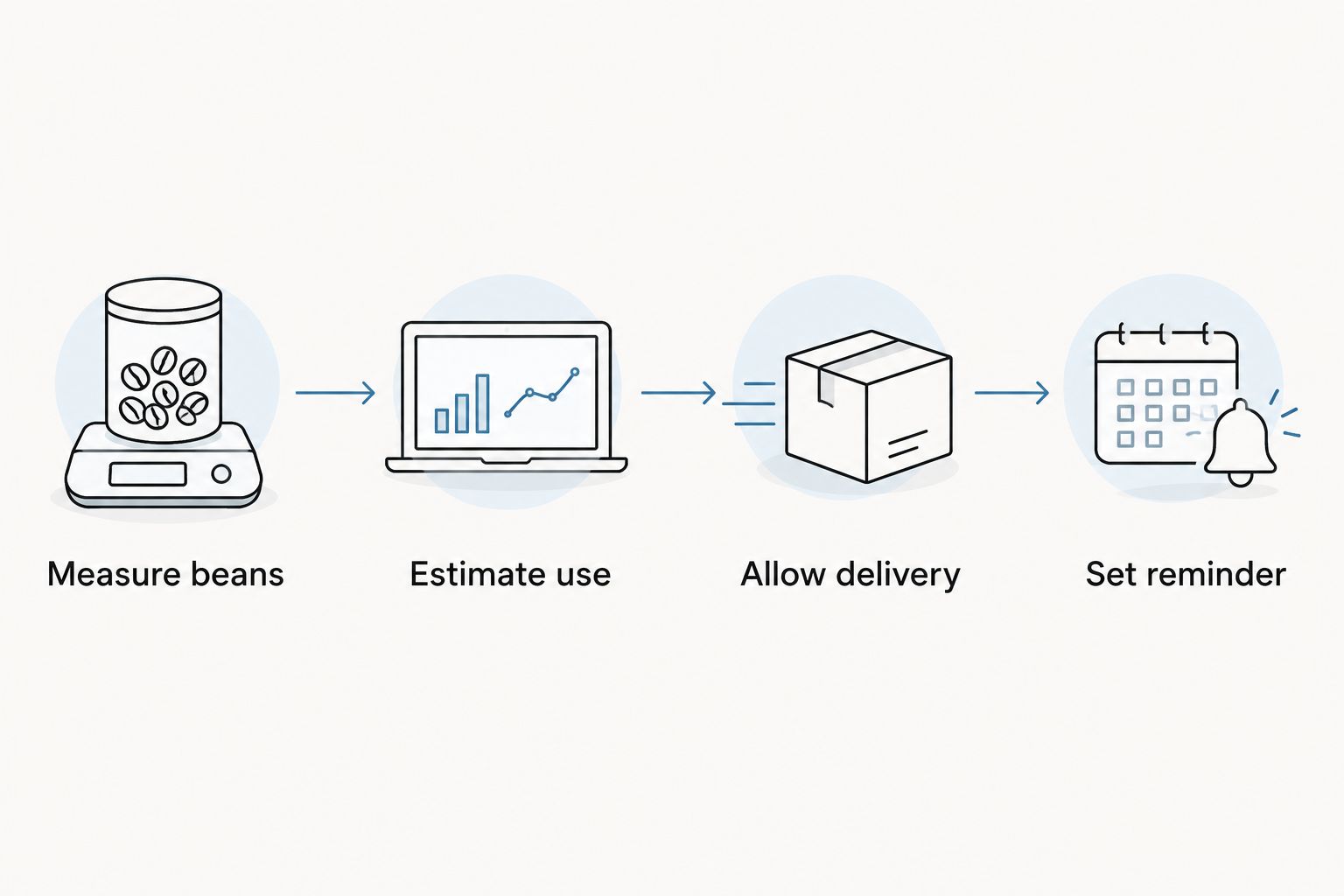
A useful 2026 restock schedule needs only enough precision to support the next purchase. Recalculate when your brewing habits change; do not keep adjusting the date for tiny differences in a single dose.
Google Calendar reminder
Create the reorder event
- Open Google Calendar on desktop and select Create, then Event.
- In Add title, enter a clear action such as “Check decaf beans and reorder.” Avoid a vague title that leaves you wondering what to do.
- Set the event date to the reorder date you calculated. Choose a time when you can inspect the bag and complete an order.
- Use the event description to record your daily bean use, delivery allowance, reserve, and preferred coffee. Include whole bean or the ground format you normally use.
- Keep the event on a calendar you check regularly. A reminder hidden among unused calendars does not help your morning routine.
Expected result: The event identifies both the action and the coffee details you need when the reminder arrives.
Before repeating the event, check that its description separates estimated timing from confirmed order information. Your estimated empty-bag date belongs in the planning notes; the date you actually ordered belongs in the purchase record.
Set repetition and notifications
- Open Does not repeat and select Custom.
- Choose the repeat interval that matches your measured consumption and ordering pattern. Do not default to a monthly repeat just because coffee comes in bags.
- Select Done to confirm the custom recurrence.
- Use Add notification to choose a notification you will notice. You can set an advance reminder 1 day before the event if you want time to check your remaining beans.
- Select Save. Open the saved event and confirm that the next occurrence and notification timing match your plan.
Expected result: Google Calendar holds a recurring reorder check with a visible next date and a configured notification.
For a fixed cadence, base the repeating interval on the amount you normally replenish and how quickly you use it. The first reminder date comes from the beans currently remaining; subsequent dates need to reflect your normal replenishment cycle.
Test the notification route before relying on it. Create a separate test event, confirm that its notification reaches your device, then remove the test event. Calendar settings and device permissions both affect whether you see the alert.
Purchase confirmation
Turn the reminder into a completed restock
- When the reminder arrives, check the beans remaining before placing an order. Your measured average is a starting point, not a live inventory count.
- Confirm that the coffee is explicitly identified as decaf. Roast level and flavor descriptions do not establish caffeine status.
- Check the format, quantity, and delivery details shown during ordering. Keep the selection matched to your brewer and current household routine.
- After ordering, record the confirmation and order date in the event description or your coffee notes.
- When the coffee arrives, record the delivery date and review the next reminder.
Expected result: You have a confirmed purchase record and a reminder that still fits your remaining coffee.
If you are still choosing a daily decaf, the best decaf coffee beans guide is a separate selection step. Settle on the coffee and brewing format before repeating the same purchasing routine.
Cinder and Cedar Coffee Roasters’ Peru Decaf has a medium roast and caramel and citrus notes. Those details help you choose a cup profile; they do not determine your reorder interval or establish an automatic purchasing service.
Delivery-reset reminders for changing routines
A fixed repeat works when your consumption stays consistent. If your decaf use changes with work schedules, visitors, or travel, use a delivery-reset reminder instead: each arrival becomes the point at which you calculate the next reorder date.
- When a delivery arrives, add the new beans to your remaining inventory measurement.
- Review whether your daily-use estimate still reflects your routine.
- Calculate the next empty-bag estimate, then subtract the delivery allowance and reserve.
- Move your next reorder event to that date. When editing a recurring event, choose the appropriate scope so you do not unintentionally change unrelated future reminders.
- For a fully delivery-reset approach, keep a single upcoming event rather than a repeating series.
Expected result: Your next reminder reflects beans actually received instead of an unchanged calendar pattern.
This version automates the notification after you set the date. It does not detect deliveries by itself. Use the table to choose the approach that matches your 2026 coffee routine.
| Workflow | Best for | Advantage | Limitation |
|---|---|---|---|
| Recurring reminder | Steady daily decaf use | Repeats without rebuilding the event | Drifts when consumption or deliveries change |
| Delivery-reset reminder | Variable brewing routines | Starts from actual beans received | Requires updating the date after each delivery |
| Seller-managed recurring order, where offered | Drinkers seeking automatic purchases | Moves purchasing into the seller’s recurring-order process | Requires checking the seller’s actual settings and terms |
Google Calendar is best for reminder automation, not unattended ordering. Check any seller-managed recurring-order service directly before relying on it; the calendar workflow does not create one.
Troubleshooting
The notification never appears
Open the saved event and check its notification settings. Then check Google Calendar notifications and your device’s permission settings. Run another test event after changing them so you verify the fix rather than assuming it worked.
The reminder arrives after the bag is empty
Recheck your measured consumption and delivery allowance. Include beans used for guests, extra batches, and grinder adjustments. Move the next reminder earlier based on those records rather than adding an arbitrary interval.
Reminders continue while coffee builds up
Reduce the replenishment quantity or lengthen the interval to match your use. If the change is temporary, adjust the affected event rather than rewriting the entire schedule. A 2026 travel break should not become a permanent change to your everyday coffee calculation.
Someone else already placed the order
Use a shared calendar and identify who handles purchases. Add the order confirmation to the event as soon as the purchase is complete. A dismissed notification is not a shared purchase record, so do not use dismissal as your only signal.
The next reminder ignores a delivery delay
Update the delivery record and inspect the next scheduled occurrence. For recurring events, select the editing scope carefully. If delays repeatedly disrupt the pattern, switch to delivery-reset reminders and calculate from beans actually received.
Customize your workflow
Keep decaf separate from any regular-coffee schedule. Different drinking habits create different reorder dates, even when the bags sit beside the same brewer.
Add brewing format to the reminder description. “Decaf for drip maker” is more useful than “coffee” when you shop for several people, and noting whole bean helps prevent an accidental format change.
For a shared household, assign a purchase owner and let everyone update the remaining-bean record. The reminder stays useful only when the person receiving it can act or clearly hand off the task.
Review your setup whenever the brewing routine changes. Your 2026 schedule should follow actual use, not remain fixed because the calendar was configured once.
FAQ
How do I set up automatic decaf coffee restock?
Measure your decaf use, calculate an early reorder date, and create a Google Calendar reminder. The reminder automates the prompt; you still confirm and place the purchase unless you separately use a seller-managed recurring-order service.
Can Google Calendar automatically buy my decaf coffee?
Google Calendar does not place a coffee order through this workflow. It schedules the reminder and stores the details you need to complete the purchase.
How often should I reorder decaf coffee beans?
Set the interval from your measured bean use and the amount you replenish. Include delivery time and your chosen reserve when calculating the first reorder date.
Is a repeating reminder better than resetting it after delivery?
A repeating reminder suits steady consumption; a delivery-reset reminder suits changing routines. The repeating option needs fewer updates, while the delivery-reset option follows beans actually received.
What should I do with my reminder when I travel?
Adjust the affected reorder event to reflect the coffee you will actually use. Recheck the remaining beans when you return before resuming the normal schedule.
How do I avoid ordering the wrong coffee?
Record decaf status, brewing format, and your preferred coffee in the event description. Confirm those details during ordering rather than relying on roast level or flavor notes.
Which decaf does Cinder and Cedar Coffee Roasters list?
The supplied product selection includes Peru Decaf. It is described as medium roast with caramel, smooth, and citrus tasting notes.
One last thing
Record the delivery, not just the order. Ordering coffee does not add beans to your kitchen inventory. Resetting your calculation when the bag arrives keeps the next reminder tied to coffee you can actually brew.